
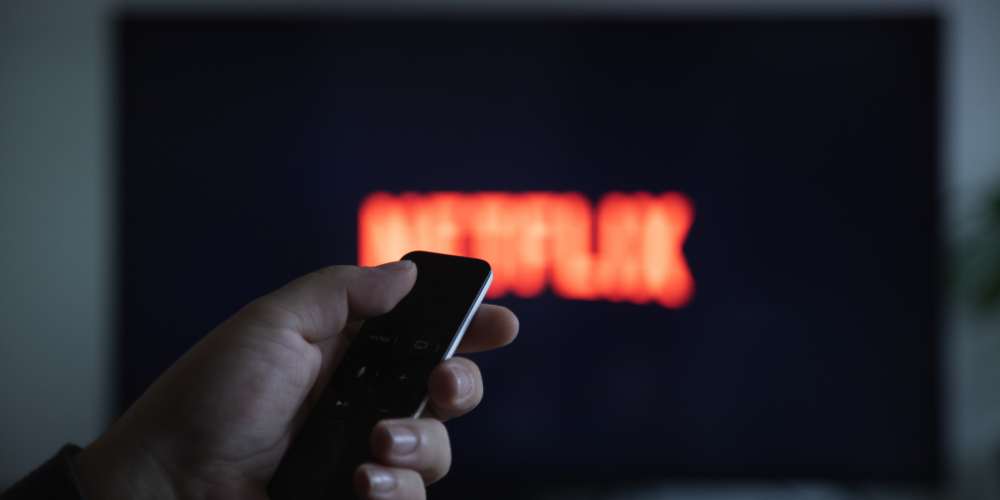
Apple TV Remote Volume Issues is a big problem nowadays. If you’re an Apple TV user, you’re likely familiar with the convenience of the Apple TV remote. However, like any electronic device, it can encounter issues from time to time. One common problem that users face is the Apple TV remote’s volume not working as expected. In this blog post, we’ll explore the possible reasons behind this issue and provide troubleshooting steps to help you resolve it.
Reasons for Apple TV Remote Volume Issues:
Before diving into troubleshooting, it’s essential to understand the potential causes of your Apple TV remote’s volume not working. Here are some common reasons:
Low Battery:
This is perhaps the most straightforward reason for remote issues. If your Apple TV remote’s battery is low or has completely drained, it may not function properly. The battery level can be checked by navigating to Settings > Remotes and Devices > Bluetooth on your Apple TV. If the battery is low, replacing it with a new one should solve the problem.
Bluetooth Connectivity:
The Apple TV remote communicates with your Apple TV via Bluetooth. If there are connectivity issues between the remote and the Apple TV, it can impact various functions, including volume control. Factors such as interference from other Bluetooth devices, distance from the Apple TV, or obstacles between the remote and the Apple TV can all contribute to connectivity issues.
Software Glitches:
Like any electronic device, the Apple TV and its accessories can experience software glitches or bugs. These glitches may affect the performance of the remote, including its volume control function. Updating the Apple TV’s software to the latest version can often resolve such issues by fixing bugs and improving overall system stability.
Hardware Damage:
Physical damage to the Apple TV remote can also cause volume control problems. For example, if the remote has been dropped, exposed to water, or subjected to other forms of damage, its internal components may be compromised, leading to malfunctioning features. In such cases, repairing or replacing the damaged remote may be necessary.
Settings Configuration:
Incorrect settings or configurations on either the Apple TV or the remote itself can result in volume control issues. For instance, if the remote is not paired properly with the Apple TV or if the audio settings on the Apple TV are misconfigured, it can cause the volume control function to malfunction. Checking and adjusting these settings can help resolve the issue.
Troubleshooting Steps for Apple TV Remote Volume Issues:
- Check the remote battery:
- Press the Menu button on your Apple TV remote.
- Navigate to Settings > Remotes and Devices > Bluetooth.
- Look for your remote in the list and check the battery level. If it’s low, replace the batteries.
- Restart Apple TV:
- Go to Settings > System > Restart on your Apple TV.
- Alternatively, you can unplug the Apple TV from power, wait a few seconds, and then plug it back in.
- Repair Remote:
- If the remote is not responding at all, you may need to re-pair it with your Apple TV.
- Navigate to Settings > Remotes and Devices > Bluetooth on your Apple TV.
- Select your remote and choose “Forget Device,” then follow the on-screen instructions to re-pair it.
- Check for updates:
- Ensure that your Apple TV and remote are running the latest software.
- Go to Settings > System > Software Updates on your Apple TV to check for updates.
- Reset Remote Settings:
- If the issue persists, you can reset your remote’s settings.
- Navigate to Settings > Remotes and Devices > Bluetooth on your Apple TV.
- Select your remote and choose “Reset Remote.”
- Inspect for physical damage:
- Examine your Apple TV remote for any signs of physical damage. If found, consider getting it repaired or replaced.
- Verify audio settings:
- Check the audio settings on your Apple TV to ensure they are configured correctly.
- Go to Settings > Video and Audio > Audio Format on your Apple TV.
Conclusion:
Experiencing issues with your Apple TV remote’s volume not working can be frustrating, but by following the troubleshooting steps outlined in this guide, you can often resolve the issue quickly. Remember to check the battery, ensure proper connectivity, update software, and consider resetting or repairing the remote if necessary. If the problem persists despite troubleshooting, reaching out to Apple support may be the next step to explore hardware-related solutions or replacements.



Leave a Reply