
Face ID Not Working –If Face ID is not working on your iPhone or iPad, first check that nothing is covering the TrueDepth camera or your face. Ensure your face is entirely visible, including your eyes, nose, and mouth. Check for updates, and make sure your Face ID settings are properly set up, particularly if you use Face ID for certain functions such as contactless payments or password autofill. If necessary, attempt to reset Face ID, add an alternative look, or briefly disable the “Require Attention for Face ID” feature.
This facial recognition technology is an iPhone and iPad’s winning ticket for secure and easy unlocking, approving purchases, and signing into apps. But when it fails, Face ID drives a wedge into your routine, and so it becomes a hassle. Not working? Well, there can be any number of reasons behind it, ranging from simple software glitches to a hardware malfunction.
Common Causes of Face ID Not Working
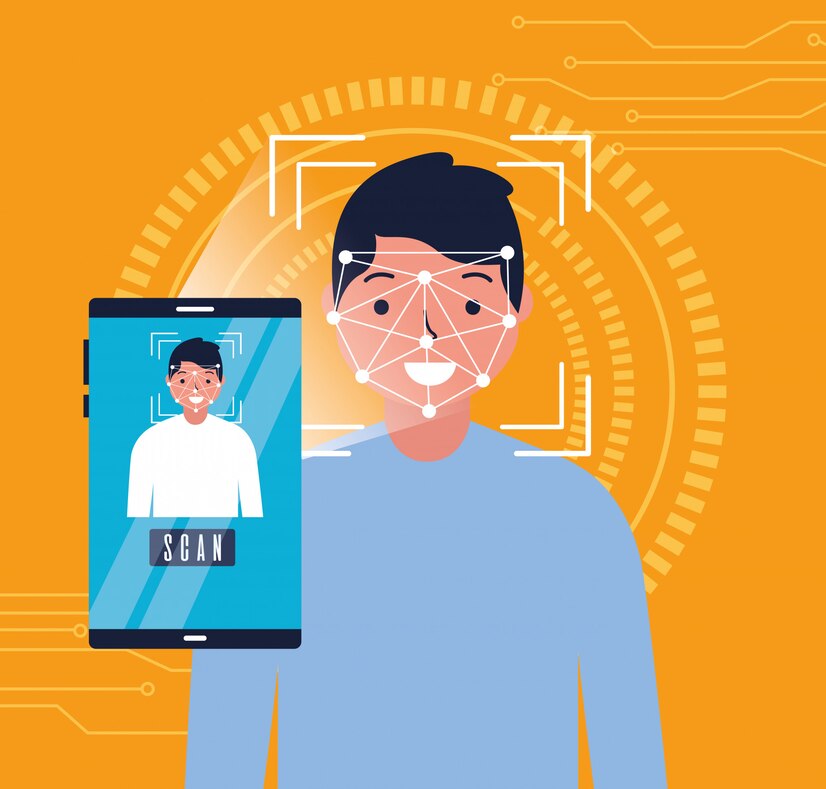
Understanding why Face ID is not working is the first step to resolving it. Here are some of the most frequent causes:
Obstructed TrueDepth Camera
- The TrueDepth camera system is employed to identify Face ID. When it is covered by dirt, a phone case, a screen protector, or debris, it will not function at all. Even a smudge or fingerprint on the lens can interfere. Face Not Properly Positioned
- Face ID requires your face to be openly visible. If the camera is unable to capture your entire face or if you have the phone too close or too far, it might not recognise your face.
Wearing Accessories That Obscure the Face
- Products like sunglasses, hats, face masks, or certain hairstyles can disrupt Face ID’s recognition of your features, especially if they cover significant facial landmarks.
Software Glitches
- Like with any technology, software glitches or system failures at times make Face ID malfunction. This can happen after an ios update, a failed installation, or an app error.
Face ID Settings Turned Off
- Other times, the issue might be something as straightforward as a setting. Face ID might have been inadvertently turned off for functions like opening apps or Apple Pay.
Lighting Conditions
- Extremely low or harsh lighting might cause it to be difficult for the TrueDepth camera to properly map your face.
Hardware Issues
- If your iPhone was damaged or dropped, the TrueDepth camera components may have been destroyed, thus leading to complete failure of the Face ID feature.
How to Repair Face ID When It’s Not Responding
- If you’re encountering problems with Face ID, you can try a few steps to troubleshoot and hopefully fix the issue.
Start with the basics.
- Gently clean the top front of your iPhone to remove any dirt, smudges, or debris from the TrueDepth camera. Make sure there is nothing physically blocking it, like a dirty screen protector or case.
Face ID Settings
- Go to: Settings > Face ID & Passcode
- Make sure Face ID is set up and enabled for the features you want (iPhone unlocking, iTunes & App Store, Apple Pay, and Password AutoFill). If not, enable them.
How to Reset Face ID
Step 1: If the system still refuses to recognise your face:
- Go to Settings > Face ID & Passcode.
- This tends to resolve problems brought about by minor facial shifts or misalignment in the initial scan.
- Follow the on-screen steps to set up Face ID again in a well-lit setting.
Step 2: Ensure That Nothing Is Blocking Your Face
- Take off any accessories that might be covering your face. Though Face ID with a Mask is currently a feature on newer versions of ios, it still may struggle with particular items or if your face is partially covered.
Step 3: Hold the Phone Correctly
- Hold your iPhone at arm’s length or naturally hold it at portrait position. Try to let your entire face be shown to the camera.
Step 4: Restart Your Device
- A soft reset may even eliminate software glitches or bugs that may be affecting Face ID.
Step 5:Press and hold the volume button and the side button simultaneously until the slider shows up.
- Slide to power off.
- Wait for several seconds, and then turn the device back on.
Step 6:Update ios
- Ensure your device’s ios is running the latest available version. Software updates typically comprise bug fixes as well as improved Face ID, courtesy of Apple.
- Go to Settings > General > Software Update to check for updates.
Step 7:Check for Hardware Issues
- If you believe the problem has a hardware element (especially in case Face ID stopped working following a fall), run a diagnosis:
- Go to Settings > Face ID & Passcode.
- If you’re seeing a message like “Face ID is not available” or “A problem was detected with the TrueDepth camera”, then you’re likely dealing with a hardware problem.
- In that event, a visit to an Apple Store or service centre is your best bet.
Step 8: When to Contact Apple Support
- If you’ve done everything listed above and Face ID is still not functioning, it’s time to ask for professional help. Particularly if:
- Face ID setup is unavailable or greyed out.
- You keep getting error messages.
- Your phone has been wet or has fallen.
Step 9:Apple professionals can do more in-depth tests to see if there’s a camera or other internal component failure.
- Final Thoughts
- Face ID is an efficient and reliable feature, but it’s not foolproof. Common troubleshooting methods, like clearing out the camera, resetting Face ID, or checking for an update on your device, should address most common problems. Physical damage or faulty hardware scenarios could have no alternative but to contact Apple for assistance.
Important –

- iPhone Face ID not working—Restart iPhone and reset Face ID from Settings.
- Face ID not working on iPhone—Wipe the front camera and make sure nothing is obstructing it.
- Face ID not working on iPhone 13— Update ios and reset Face ID from Face ID & Passcode.
- Face ID is not working. Move iPhone lower—Hold your phone in an eye-level position and change the angle.
- Face ID not functioning after update—reset Face ID and verify another software update.
FAQ:
Q1: Face ID is not working on iPhone 15?
Ans: Face ID setup or operation can fail because of a dirty camera, software glitches from the new iOS update (such as iOS 18), improper settings, or hardware failure on iPhones such as iPhone 12 or iPhone 15—clean the TrueDepth camera, verify Face ID settings, restart your phone, or update/reset if necessary.
Q2: Is my Face ID not working on my iPhone?
Ans: Your Face ID may not work because your camera is blocked or dirty, or your face isn’t visible.


Leave a Reply